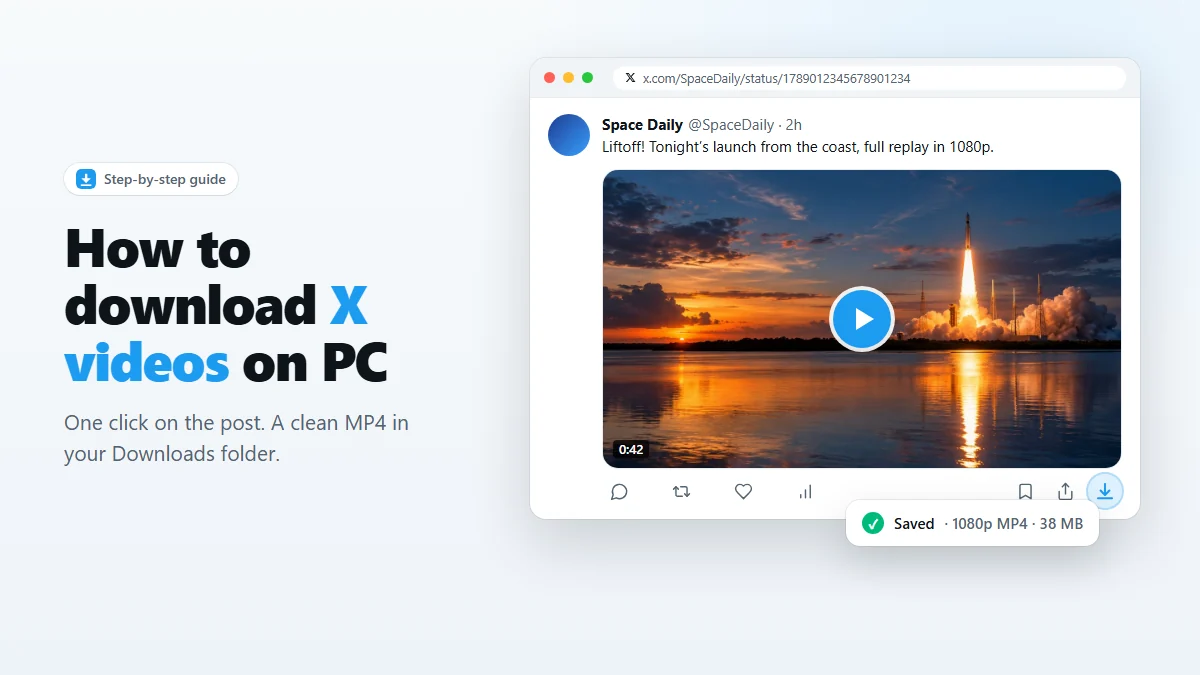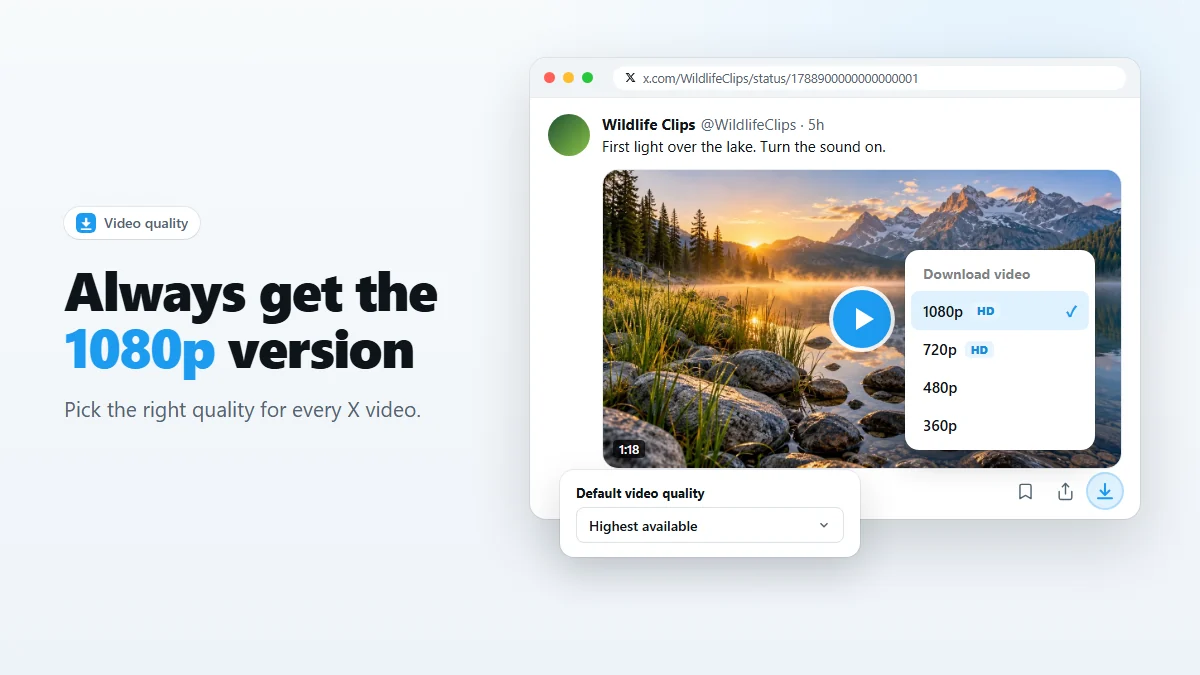
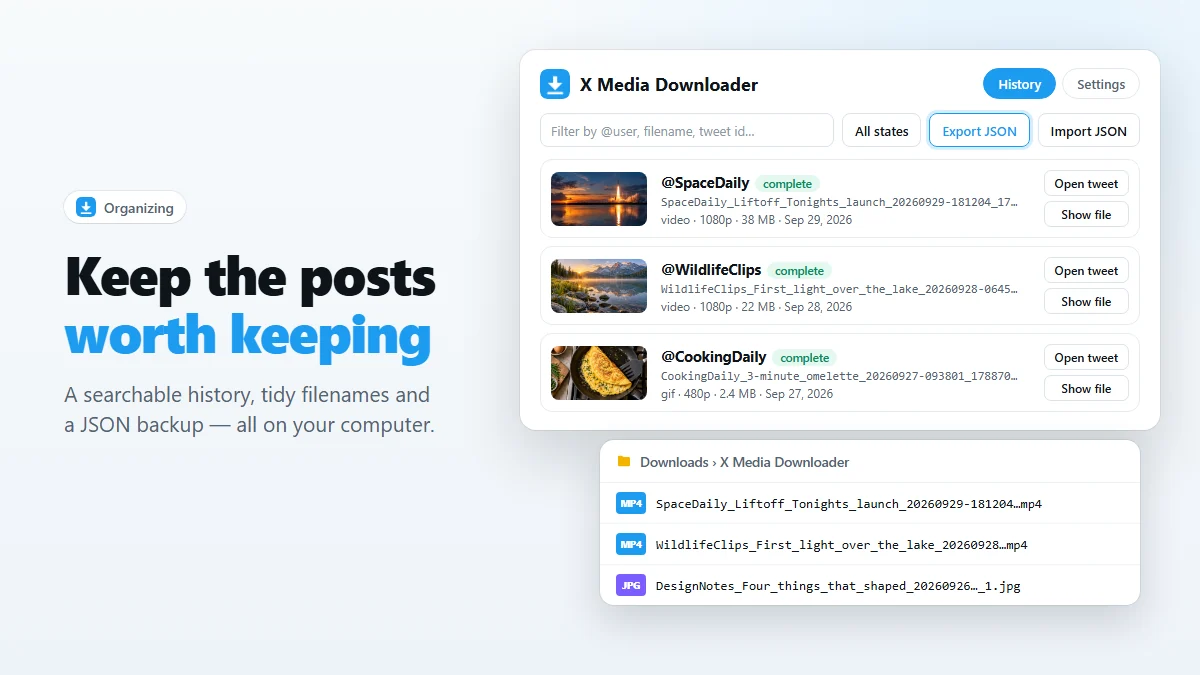
- Give your saves one folder: set a Subfolder in the extension settings.
- Keep the default filename template
{user}_{text}_{datetime}_{id}— or tune it. - Find anything later in the download history, searchable by account, filename or post ID.
- Back up the folder and click Export JSON once in a while.
Most of what scrolls past on X is gone from your mind a minute later. But some posts are worth keeping: a talk that changed how you work, a tutorial you will need again, a clip from an event you were at, an explainer you want to show your team. This guide is about keeping those — not just saving them once, but being able to find them again in a year.
Why bookmarks aren’t enough
X bookmarks are a reading list, not an archive. They point to the post, and the post can go away: the author deletes it, protects their account, gets suspended, or the media is taken down. When that happens your bookmark shows “This post is unavailable” and the video is gone.
Bookmarks are also hard to search. There is no way to find “that robotics video from spring” among hundreds of saved posts. A local archive fixes both problems: the file stays on your disk, and a sensible name makes it findable in any file browser.
Step 1: Pick a home for your archive
Open the extension settings (right-click the toolbar icon → Options → Settings). The Subfolder field decides where everything goes, relative to your browser’s Downloads folder. The default is X Media Downloader.
A few setups that work well:
- One folder for everything — keep the default. Simple and easy to back up.
- By account — set the filename template to
{user}/{text}_{datetime}_{id}. The/creates a subfolder per account automatically. - By day —
{date}/{user}_{text}_{id}puts each post in a folder like2026-09-29, so the archive sorts by when things were posted. - Decide every time — turn on Ask where to save every time to get Chrome’s Save As dialog and file each download by hand.
chrome://settings/downloads — the subfolder is then created there. Step 2: Name files so you can find them
A file called video.mp4 is lost the moment you save it. The default template names each file after the account, the first words of the post, the time it was posted and the post ID:
SpaceDaily_We_are_go_for_launch_20260929-181204_1789012345678901234.mp4That one name tells you who posted it, what it is about and when — and because the post ID is unique, two downloads never overwrite each other. Your operating system’s file search now finds it by any word from the post.
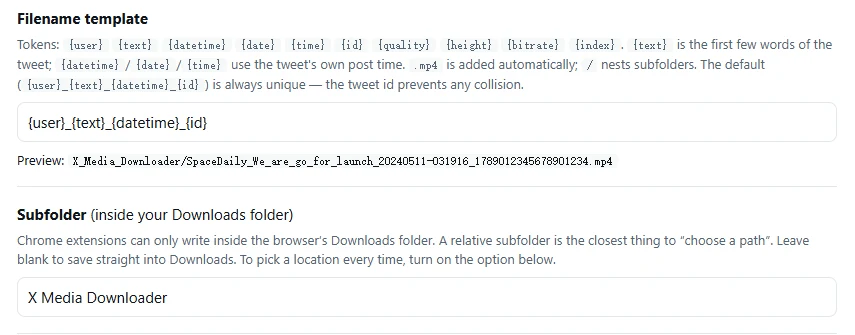
Available tokens:
| Token | Becomes |
|---|---|
{user} | The account’s @handle |
{text} | The first few words of the post |
{datetime}, {date}, {time} | When the post was published (not when you downloaded it) |
{id} | The post ID — keeps every name unique |
{quality}, {height}, {bitrate} | Details of the video rendition you saved |
{index} | The photo number in multi-photo posts |
Using the post’s own date rather than the download date matters for an archive: sorting by name puts things in the order they happened.
Step 3: Search your download history
Every download is recorded on the extension’s History page with a thumbnail, the account, the file name, type, quality, size, date and status. From each entry you can:
- Open tweet — jump back to the original post and its replies.
- Show file — reveal the file in your file manager.
- Re-download — fetch it again if you deleted or moved the file (as long as the post is still online).
- Remove — delete the history entry; the file itself is untouched.
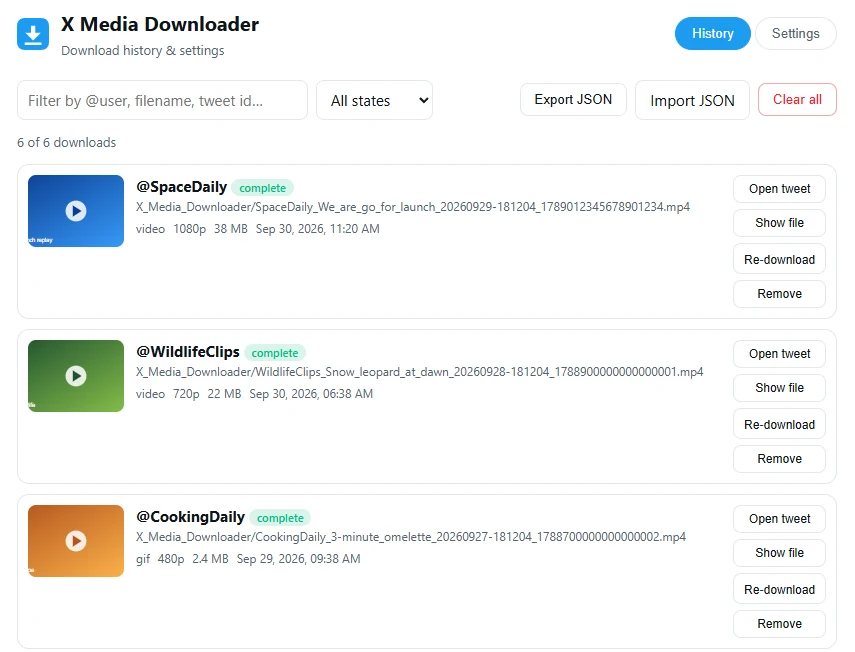
Type in the filter box to search by @user, any part of the filename, or a post ID. Use the status filter to find downloads that were interrupted and retry them.
Step 4: Back up your archive
An archive on one disk is one accident away from gone. Two habits are enough:
- Back up the folder. Include your download subfolder in whatever you already use — an external drive, your NAS, or a cloud-synced folder.
- Export the history. Click Export JSON on the History page now and then. It saves the list of what you downloaded, from whom, with links to the original posts. Import JSON restores it on a new computer, skipping duplicates.
Everything stays with you. The extension has no servers and no account: settings and history live in your browser, and files live on your disk.
A simple saving routine
- Save the moment you think “I’ll want this later.” One click is cheaper than searching X for it in six months — if it is still there.
- Save the best quality for anything you might reuse. Keep Highest available as the default; see why quality matters.
- Clean up monthly. Skim the history, remove what you no longer need, and export the rest.
- Credit creators. Your archive is for you. If you share something from it, link the original post — the Open tweet button makes that a click away.
New to X Video Downloader? Start with how to download videos from X, or add it to Chrome and save your first post.
Frequently asked questions
Where is the download history stored?
Only in your browser’s local extension storage on your computer. It is never uploaded anywhere. Use Export JSON if you want a copy elsewhere.
How many downloads does the history keep?
500 by default. You can change the limit under Keep at most in the settings; the oldest entries are dropped first. The files themselves are never deleted by the extension.
Can I save files outside the Downloads folder?
Chrome only lets extensions write inside the Downloads folder (subfolders are fine). To save anywhere, turn on Ask where to save every time, or change Chrome’s download location in chrome://settings/downloads.
Can I move my history to another computer?
Yes. Click Export JSON on the old computer and Import JSON on the new one. Entries that already exist are skipped, so importing twice is safe.
What happens to my archive if a post is deleted on X?
Nothing. The files on your disk are yours and keep working. The Open tweet link in the history will stop working, but the file, account name and date remain.
Save videos, GIFs and photos from X in one click
Free Chrome extension. No account, no servers, no tracking.